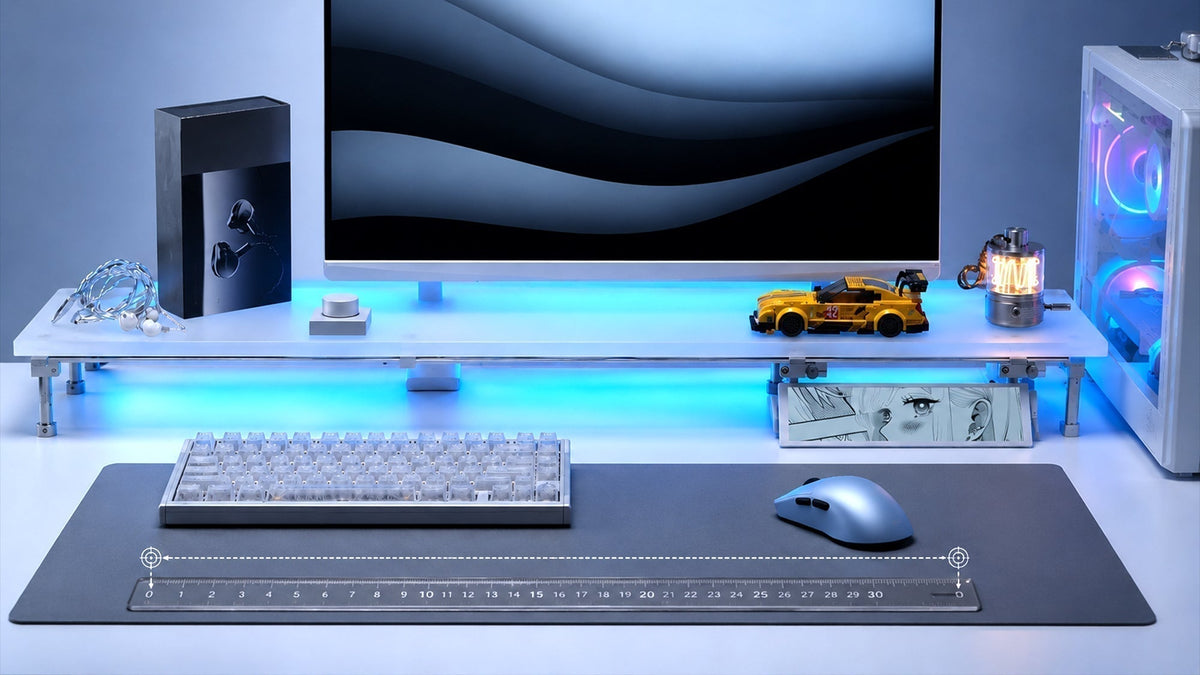



Lift-off Distance, or LOD, is a technical specification that determines how high a mouse must be raised from the surface before the sensor stops tracking movement. For competitive gamers, this setting is just as vital as DPI or polling rate. If the distance is too high, the cursor might jitter when you reset your mouse position; if it is too low, the sensor might stop tracking during fast swipes. This lift off distance tuning guide will help you understand how your sensitivity and mouse grip interact with your sensor to create a stable aiming environment.
How does sensor tracking height influence low-sensitivity aiming?
Low-sensitivity players are those who require large physical arm movements to perform in-game actions, such as a 180-degree turn. Because their mousepads are usually very large, these players frequently run out of space and must lift the mouse to "reset" it back to the center of the pad. This frequent lifting makes sensor tracking height a critical variable in their performance.
When a low-sens player lifts their mouse, they need the sensor to stop tracking immediately. If the LOD is set too high, the sensor will continue to read the surface as the mouse is being raised or lowered. This results in unwanted cursor movement, often called "jittery resets." For these players, a low LOD (typically 1.0mm or lower) is essential to ensure that the crosshair stays exactly where it was intended to be during the lift-and-reset motion.
Modern gaming mice have perfected this by offering ultra-low settings. By minimizing the tracking distance, low-sens players can maintain better control during intense firefights where multiple resets are required. Without a properly tuned LOD, the cumulative effect of small cursor jumps during each reset can lead to significant aiming inconsistency over a long match.
Why do high-sensitivity players prefer different settings?
High-sensitivity players operate on the opposite end of the spectrum. They often use tiny wrist movements to navigate the screen, rarely ever lifting their mouse from the pad. Because their mouse stays grounded most of the time, they might assume that LOD settings do not matter. However, many of the best wireless mice used by high-sens pros are still tuned for specific LOD behavior to prevent "sensor skipping."
High-sens players often prefer a slightly higher or more "lenient" LOD compared to low-sens players. This is because high-sensitivity aiming relies on micro-adjustments where the mouse might be slightly tilted or pressured unevenly. If the LOD is set extremely low, the sensor might lose tracking if the player slightly lifts one side of the mouse during a fast flick. A slightly higher tracking height ensures that the sensor remains active and consistent even if the mouse is not perfectly flat on the surface.
Furthermore, high-sens players are more susceptible to tracking issues caused by dust or debris on the mousepad. A razor-thin LOD can be interrupted by a single speck of dust, causing a momentary tracking "hiccup." By allowing for a small amount of extra height, high-sens players gain a more robust tracking experience that is less sensitive to minor surface imperfections.

Adjust LOD based on your mouse pad material
The physical material of your mousepad directly impacts how the sensor perceives the surface. Different materials reflect and absorb the sensor's light in unique ways, which can artificially change the effective sensor tracking height. Understanding these materials is a key part of any lift off distance tuning guide.
Cloth and Hybrid Surfaces
Standard cloth pads are the most common. They provide a consistent, non-reflective surface that is easy for most sensors to read. On a standard black cloth pad, the factory LOD settings are usually accurate. However, if you use a "speed" cloth pad with a shiny or coated finish, the sensor may track at a slightly higher distance than intended due to the increased light reflection.
Hard and Glass Mousepads
Hard pads (plastic) and glass pads have become increasingly popular in the professional scene. Glass, in particular, is highly reflective. Some sensors struggle to determine the distance on glass, often resulting in a much higher LOD than a cloth pad would produce. If you are using one of the best wireless mice on a glass surface, you will likely need to manually lower your LOD in the software to compensate for the surface's reflectivity.
Cordura and Textured Surfaces
Cordura pads are known for their extreme durability and rough texture. Because the weave is more pronounced, the distance between the "peaks" and "valleys" of the fabric can cause the sensor to behave inconsistently. Players using textured pads often benefit from a medium LOD setting to ensure that the sensor doesn't cut out when it passes over a deeper part of the weave during a fast movement.
Calibrate your sensor via official gaming mice software
To get the most out of your hardware, you should not rely solely on default settings. Most modern gaming mice come with proprietary software (like Razer Synapse, Logitech G Hub, or ATK Hub) that allows for granular LOD adjustments. This process ensures that your mouse is perfectly synced with your specific environment.
Using Preset Surface Profiles
Many software suites include a library of popular mousepads. By selecting your specific pad model from the list, the software automatically adjusts the LOD and sensor frequency to match that material's known reflective properties. This is the easiest way for most users to achieve a stable tracking height without manual trial and error.
Manual Surface Calibration
If your pad is not on the list, or if you use a custom desk mat, you can perform a manual calibration. The software will ask you to move the mouse in a figure-eight pattern across the pad. During this time, the sensor measures the intensity of the reflected light at various heights. This creates a custom "surface map" that optimizes the LOD specifically for your setup, providing a professional-grade level of precision.
Toggling Between 1mm and 2mm
For those who prefer simplicity, many brands offer a simple toggle between "Low" and "High" (often 1mm and 2mm). If you find that your cursor is moving when you lift the mouse, switch to 1mm. If you experience sensor "drop-outs" where the mouse stops tracking during fast movements, switch to 2mm. This basic adjustment is often enough to resolve 90% of tracking issues.
Does a high LOD cause accidental crosshair movement?
The most common complaint regarding a high LOD is the phenomenon of "crosshair drift." This happens because the sensor is still active during the initial phase of a lift or the final phase of a landing. Because the mouse is held at an angle during these transitions, the sensor perceives a diagonal movement, causing the crosshair to shift down and to the side.
For a low-sens player, this can be devastating. Imagine you are holding an angle in a tactical shooter; you run out of mousepad and need to reset. If your LOD is too high, your crosshair will twitch as you lift the mouse, potentially pulling you off your target just as an enemy peeks. This accidental movement is the primary reason why competitive gaming mice prioritize low-LOD options.
Even the best wireless mice can suffer from this if the surface calibration is incorrect. It is also worth noting that a high LOD can lead to "jitter" at high DPI settings. Because the sensor is trying to track the surface while it is slightly out of focus (due to the height), the data it sends back to the PC is less precise, resulting in a shaky cursor. Lowering the LOD is the most effective way to eliminate this unwanted noise.
Match LOD settings with your specific mouse grip
Your mouse grip is perhaps the most overlooked factor in LOD tuning. How you hold the mouse determines the angle at which it leaves the pad and how much pressure is applied to the skates, both of which affect the effective distance between the sensor and the surface.
Palm Grip and LOD
Palm grip users keep the majority of the mouse's base in contact with the pad. Because the lift-off is usually very flat and vertical, palm grip users can get away with almost any LOD setting. However, because palm grip is often associated with lower sensitivities, these players generally benefit from a low LOD to keep their frequent resets as clean as possible.
Claw Grip and Pressure
Claw grip users often apply significant downward pressure with their fingers and the palm of their hand. This can actually compress the mousepad slightly, bringing the sensor closer to the surface than it would be in a relaxed state. If a claw grip user has a very low LOD, they might experience tracking cut-outs because the sensor is "too close" to the pad. These players may find a medium LOD setting more reliable.
Fingertip Mouse Grip and Tilting
Fingertip grip involves the least amount of contact with the mouse. Because the mouse is moved primarily with the fingers, it is often tilted during fast lateral movements. A fingertip mouse grip can cause the back of the mouse to lift slightly even when the player isn't intentionally resetting. For these users, a slightly higher LOD is often necessary to prevent the sensor from cutting out during these natural micro-tilts.
Tune Your LOD for Consistent, Flick-Free Aim
Tuning your Lift-off Distance is a small adjustment that yields massive results in consistency. Whether you are a low-sens player who needs a razor-thin 1mm setting for clean resets, or a high-sens player who needs the stability of a 2mm setting for micro-tilts, understanding the "why" behind the numbers is key. By considering your mouse grip, your mousepad material, and using the calibration tools provided with modern gaming mice, you can eliminate accidental movement and ensure that your sensor tracks with absolute fidelity every time you play.
LOD Tuning Questions, Answered
Does LOD affect mouse battery life?
No, not significantly. While the sensor is technically "on" for a fraction of a second longer with a high LOD, the power consumption difference is negligible compared to settings like polling rate or RGB lighting. In the best wireless mice, you can adjust LOD without worrying about draining your battery.
Can I change LOD on a mouse without software?
Yes, some mice allow you to change LOD via physical button combinations (e.g., holding the side buttons while plugging in the mouse). Check your specific model's manual to see if it supports hardware-level LOD adjustment.
Is a lower LOD always better for gaming?
No, it depends on your surface and style. While low LOD prevents accidental movement, a "too low" setting can cause the mouse to stop tracking if your mousepad is uneven or if you tilt your mouse during fast swipes. Most players find 1mm to 1.2mm to be the "sweet spot."
Why does my mouse stop tracking on certain mousepads?
This is usually an LOD issue. If your pad is very dark or very reflective, the sensor might think it has been lifted even when it is still on the pad. Increasing your LOD or performing a surface calibration in your software usually fixes this.
Does mouse grip change my effective LOD?
Yes, indirectly. A fingertip mouse grip often results in more frequent tilting of the mouse, which can trigger the lift-off sensor earlier than a flat palm grip would. If you find your mouse "cutting out" while you grip it with your fingertips, try increasing the LOD setting.