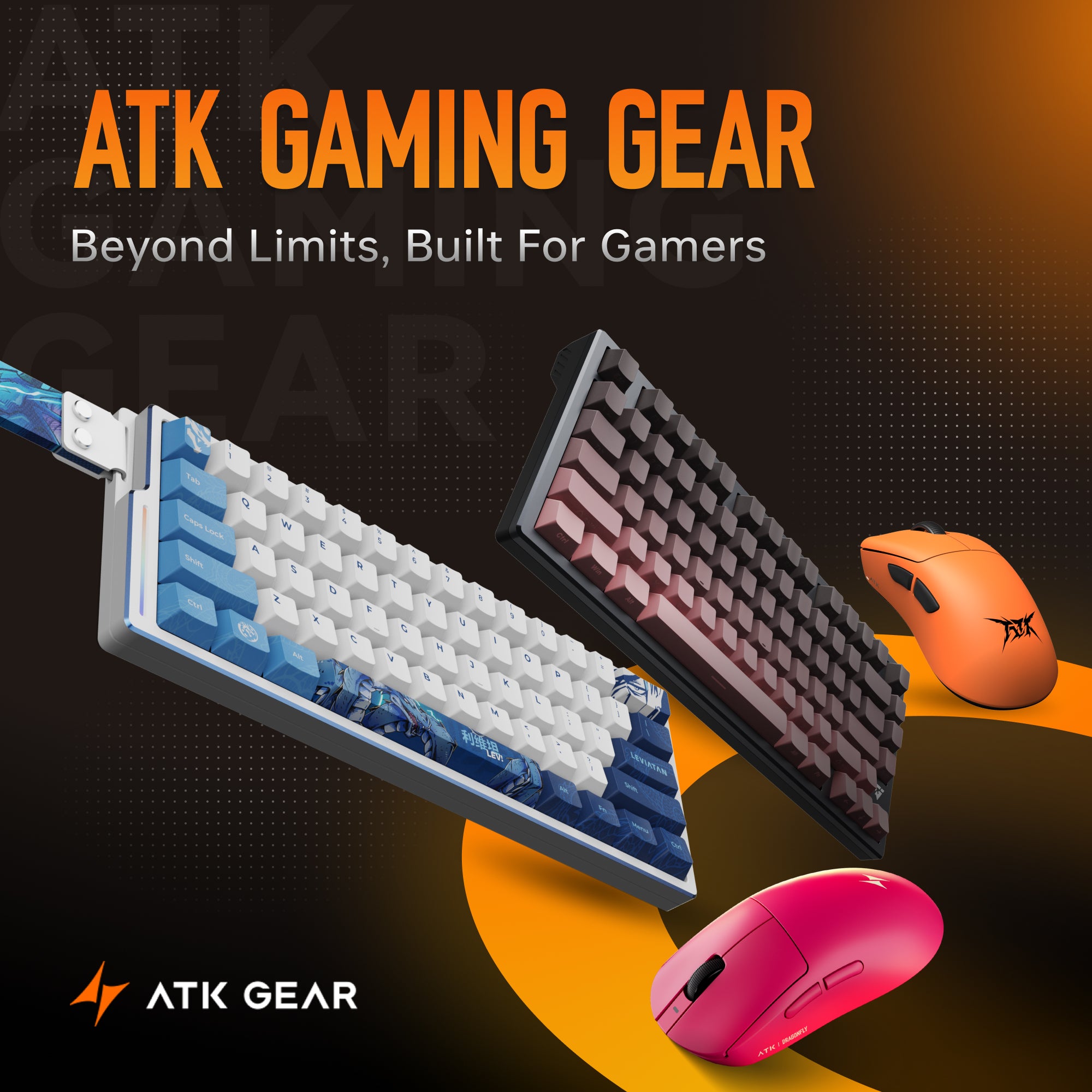
Rapid Trigger Settings Guide: Finding Your Sweet Spot for Valorant

Mastering movement in Valorant requires flawless execution of counter-strafing and deadzone stopping. Recently, the competitive scene shifted toward new peripheral technologies to achieve these precise mechanics. If you struggle to stop completely before shooting, adjusting your hardware settings makes a massive difference. This guide explains how to properly configure your rapid trigger keyboard to match your specific playstyle. By setting the correct actuation points, you can eliminate input delay, secure sharper peeks, and win more duals on the server.
How Rapid Trigger Improves Your Movement
To optimize your settings, you must first comprehend what this technology actually does during a match. It fundamentally changes how physical keystrokes register within the game engine.

Standard mechanical switches require the key to travel upwards past a fixed physical point before resetting. This means your character keeps moving for a fraction of a second after you lift your finger. A rapid trigger keyboard completely removes this physical limitation. It resets the input the exact instant the key travels upward, regardless of its physical position.
In Valorant, achieving perfect accuracy requires your character to be completely stationary. When you release the 'A' or 'D' key, the rapid trigger technology instantly registers the release. This allows for incredibly crisp counter-strafing. It ensures your crosshair settles immediately before you click your mouse, keeping your first-bullet accuracy extremely high.
Discover the Role of Magnetic Switches in Valorant
The hardware driving this instantaneous response relies on magnets rather than physical metal contacts. This structural difference provides a significant advantage in tactical shooters where milliseconds dictate the winner.
How magnetic sensors work
A hall effect keyboard measures the exact distance of the keystroke using internal magnetic sensors. Instead of a simple "on/off" physical switch, the sensor constantly tracks the stem's exact depth. This continuous tracking is what allows the software to define custom actuation and reset points anywhere along the keypress.

Durability and consistency
Because there are no physical metal leaves bending and making contact, these switches do not degrade or suffer from "chatter" over time. When using a premium gaming pc keyboard equipped with magnetic switches, every single jiggle peek feels exactly the same on day one hundred as it did on day one.

Configure Your Actuation and Release Points
Finding your sweet spot requires tweaking the software that controls your board. Copying professional player settings rarely works because finger strength and resting habits vary wildly between individuals.
Setting the initial actuation
The actuation point determines how far down you must press before the key registers. For movement keys (W, A, S, D), setting a shallow actuation between 0.4mm and 0.8mm provides highly responsive movement. When you barely tap the key to peek a corner, your character responds instantly without needing to bottom out the switch.
Dialing in the release sensitivity
The release sensitivity dictates how much the key must travel upward to deactivate. A release setting of 0.15mm is generally optimal for Valorant. This ensures that the moment your finger lessens its pressure, the character stops moving. This tight tolerance is the core benefit of any high-end rapid trigger keyboard.
Adjusting utility keys
Do not apply ultra-sensitive settings to every key. For abilities and ultimate keys, configure a deeper actuation point around 1.5mm to 2.0mm. This prevents accidental ability usage when your hand rests heavily on the board during a tense clutch situation.
Avoid Common Mistakes With Ultra Sensitive Settings
Upgrading to advanced hardware often introduces a brief adjustment period. Many players initially set their values too aggressively, leading to frustrating gameplay errors.
1. Preventing accidental movement
Setting both actuation and release to 0.1mm sounds fast, but it often causes "floating" inputs. If your fingers naturally rest heavily on the keys, your heartbeat or a slight hand tremor will cause your character to jitter left and right. This ruins your standing accuracy and causes completely avoidable missed shots.
2. Managing desk space and layout
Many competitive players opt for a compact 60% keyboard to maximize mouse space for low-sensitivity aiming. However, losing dedicated arrow keys and function rows requires a learning curve. Make sure to map your crucial buy menu and communication binds properly when transitioning to a smaller layout.
3. Updating device firmware
Never ignore software updates. Manufacturers frequently release firmware patches that improve the polling rate and magnetic sensor calibration. An outdated gaming pc keyboard might experience input drops or inconsistent actuation distances, negating the entire benefit of the hardware. Keep the companion software running in the background to ensure peak performance.
Test Your New Profile in the Shooting Range
Never jump straight into a ranked match after altering your hardware values. The firing range provides a controlled environment to verify your new configuration safely.
Practicing deadzone accuracy
Spawn a training bot and practice strafing left and right. Fire a single bullet the exact moment you release the movement key. If your bullet strays off-center, your release point might be too deep, or your finger timing is off. Adjust the sensitivity by 0.1mm increments until the bullet lands perfectly straight.
Simulating real engagements
Set the bots to the "Hard" strafing setting. Practice jiggle-peeking from behind the central training pillar. A properly tuned hall effect keyboard should allow you to expose your character for a fraction of a second, fire accurately, and retreat into cover seamlessly without drifting out too far.
Checking typing comfort
Open the in-game text chat and type a few sentences quickly. If you generate multiple typos or double-type letters, your actuation point is too sensitive for your natural finger weight. A great 60% layout keyboard should feel highly responsive in-game but remain fully usable for standard typing and team communication.
Master Your Switches for Competitive Edge
Upgrading your setup with advanced magnetic switches offers a tangible mechanical advantage in tactical shooters. By carefully configuring your actuation and release points, you eliminate hardware delay and achieve perfect stopping accuracy. Remember to avoid overly sensitive configurations initially, and always test your adjustments in the shooting range. Fine-tuning these values takes a few days of experimentation, but finding your exact sweet spot will noticeably elevate your movement mechanics and overall performance in competitive matches.
FAQ about Keyboards for Competitive Gaming
Do I need a specific board size for Valorant?
No, but many professionals prefer a 60% gaming keyboard because it provides maximum desk space for wide mouse swipes. Beyond ergonomics, smaller layouts often have a technical edge; full-sized keyboards have larger key matrices that require more processing power from the controller chip. Because compact 60% or 68% layouts have fewer keys to scan, they often provide more consistent low-latency performance, which is why most top-tier esports models use these compact designs.
What is the difference between optical and magnetic switches?
Standard optical switches use light to actuate, making them fast but typically with a fixed reset point. A hall effect keyboard uses magnets to track continuous key depth, which is currently the most popular and reliable way to achieve customizable reset points (though advanced analog optical switches can also offer this feature).
Will these settings automatically make my aim better?
No. The hardware simply removes input delay and physical mechanical limitations. You still need strong crosshair placement and fundamental game sense. It enhances good mechanics but does not fix poor aiming habits.
Why does my character randomly stop walking?
If your release sensitivity is too tight, slightly relaxing your finger pressure while holding "W" will register as a key release. Try increasing the release value to 0.3mm to give your fingers a more forgiving buffer zone.