


Modern gaming laptops offer incredible processing power, allowing you to play demanding titles anywhere. However, the built-in control inputs are fundamentally designed for typing and web browsing, not for high-stakes competitive gaming. Relying on the built-in trackpad and flat keys severely limits your reaction time, precision, and physical comfort. To unlock your hardware’s true potential, utilizing external peripherals is strictly mandatory.

Why You Physically Cannot Aim In An FPS Without A Real Mouse
First-person shooter (FPS) games require absolute precision, rapid crosshair placement, and simultaneous multi-button inputs. A laptop trackpad is mechanically incapable of meeting these requirements due to its hardware design and input processing methods.
Capacitive Touch Versus Optical Tracking
Trackpads use capacitive touch technology, calculating cursor movement based on the electrical conductivity of your fingertip sliding across a surface. This method introduces input acceleration and smoothing at the operating system level, which ruins muscle memory.
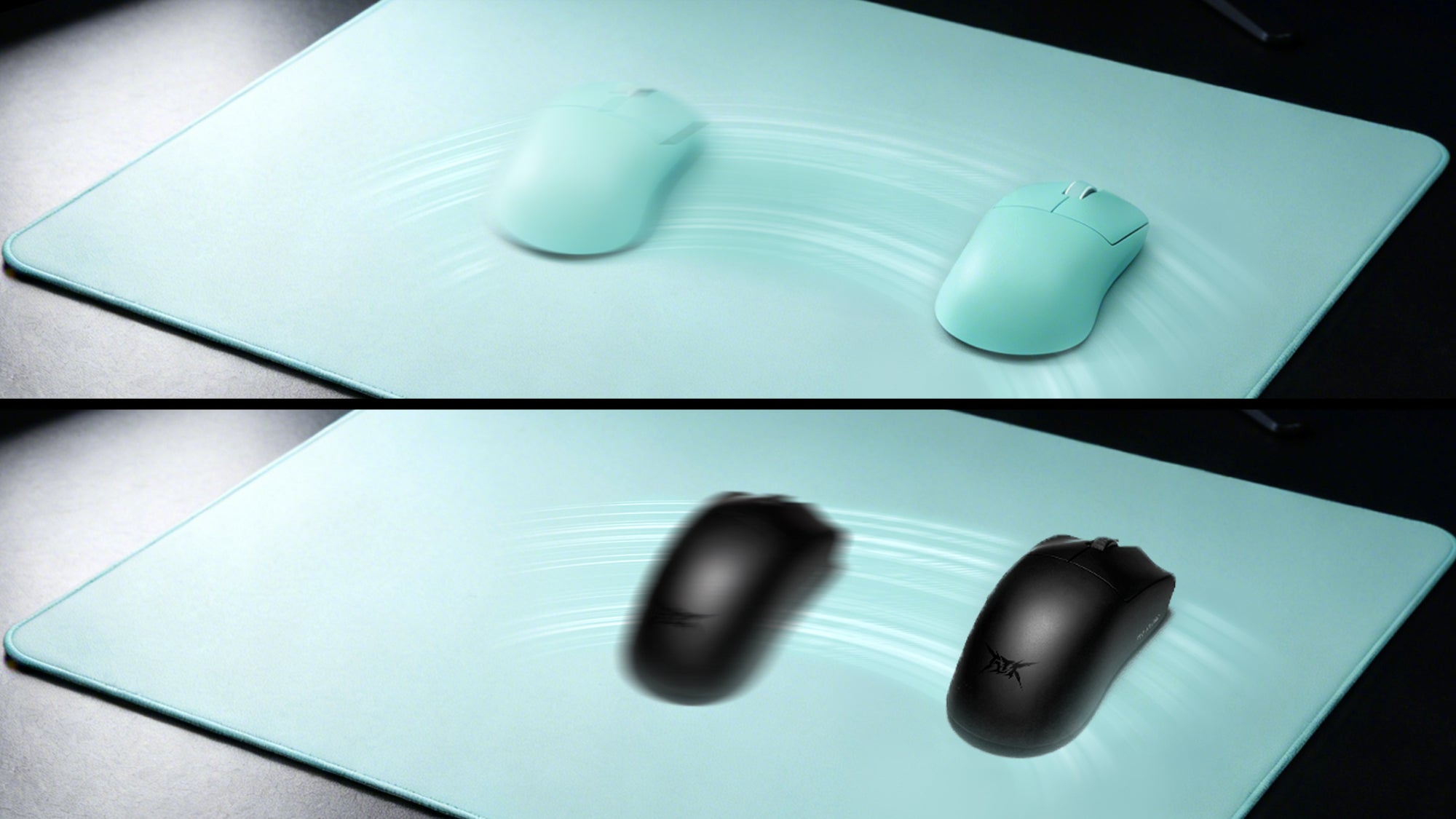
In contrast, an external mouse uses an optical sensor that tracks physical micro-movements across a mousepad. Even the best budget gaming mouse features an optical sensor capable of raw, 1-to-1 pixel tracking without software acceleration. This exact tracking is mandatory for accurately landing headshots.
The Simultaneous Input Limitation
Trackpads struggle with simultaneous complex inputs. In gaming, you frequently need to hold the right mouse button to aim down sights (ADS) while simultaneously moving the crosshair and clicking the left button to shoot. Most laptop trackpads cannot register a physical right-click hold and a left-click tap while tracking movement at the same time.
Whether you choose a modern wireless gaming mouse for unrestricted movement or a traditional computer mouse wired directly to your USB port, having dedicated physical left and right buttons guarantees that your simultaneous inputs are registered instantly and accurately.
Polling Rate Deficiencies
Standard laptop trackpads typically report data to the computer at a polling rate of around 125Hz, meaning the cursor updates 125 times per second. Gaming requires a minimum polling rate of 1000Hz to eliminate input lag. Upgrading to a proper external mouse ensures your hand movements are translated to the screen with zero noticeable delay.
Why Resting Your Hands On A Hot Laptop Chassis Degrades Performance
Gaming laptops pack desktop-grade graphics cards and processors into a chassis less than an inch thick. When these components run under heavy load, they generate significant heat that directly impacts your physical comfort and gaming performance.
The Chassis Acts As A Heatsink
Because space is limited inside a laptop, manufacturers use the entire metal or plastic chassis to help dissipate internal heat. The CPU and GPU are usually located directly under the center of the keyboard, exactly where your left hand rests on the WASD keys. During a gaming session, the surface temperature of the palm rest can exceed 100 degrees Fahrenheit (38 degrees Celsius). Resting your hands on this hot surface causes immediate hand fatigue and excessive sweating.
Moisture Impacts Grip And Accuracy
Sweaty hands lead to slipping on the keys and poor friction control. If your fingers are sliding off the movement keys, your in-game movement becomes erratic. Moving your hands completely away from the hot chassis by using a dedicated gaming keyboard and mouse setup entirely solves this thermal discomfort. Your hands remain cool on your desk surface, ensuring consistent grip and execution.
Protecting Internal Components
Pressing down firmly on a hot laptop chassis also applies downward pressure on the internal cooling fans and heat pipes. Over time, heavy keystrokes on a thermally stressed laptop deck can cause chassis flex. Keeping your hands entirely off the device by utilizing an external computer mouse wired to the machine or a high-quality wireless gaming mouse protects the delicate internal cooling structure of your expensive hardware.
The Limitations Of Membrane Laptop Keyboards Vs. A Mini Gaming Keyboard
Laptop keyboards are engineered for extreme thinness. To achieve this, manufacturers utilize membrane domes or low-profile scissor switches. These switches present massive technical disadvantages for gamers requiring rapid, reliable inputs.
Insufficient Actuation Force And Travel Distance
Laptop keys generally have a total travel distance of 1.2 to 1.5 millimeters. Because the travel distance is so short, the keys bottom out harshly against the metal deck with almost no tactile feedback. This leads to accidental key presses and severe finger fatigue over long sessions.
An external mini gaming keyboard utilizes mechanical switches with a much deeper travel distance, usually around 4.0 millimeters. Mechanical switches provide a clear physical actuation point, allowing you to know exactly when a keypress registers without having to bottom out the key forcefully.
The Danger Of Key Ghosting
Standard laptop keyboards suffer from "ghosting." Because the key matrix shares wiring pathways to save space, pressing more than three or four keys simultaneously will cause the keyboard to drop inputs. If you try to sprint forward, crouch, and reload at the same time, the laptop may ignore the reload command.
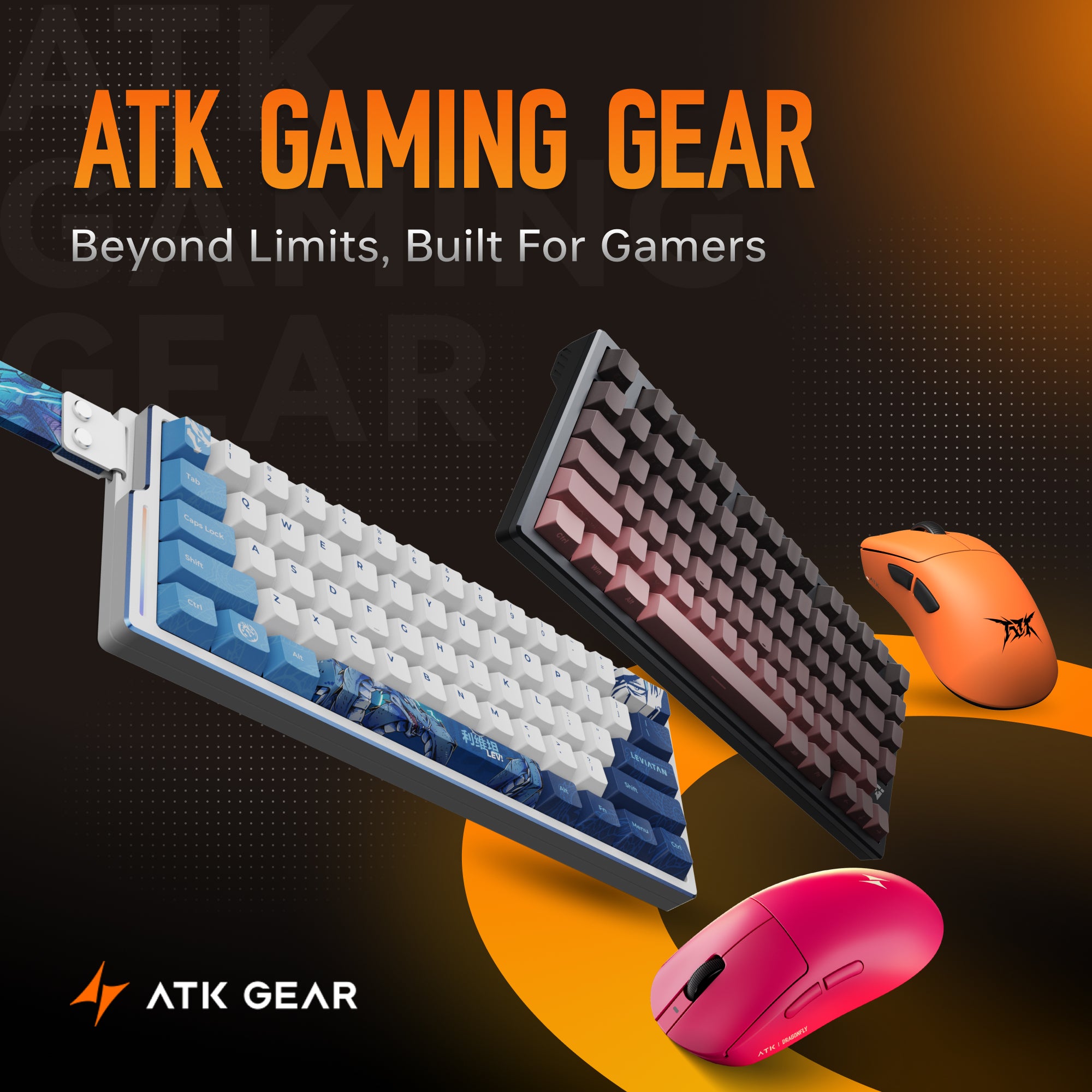
A dedicated mini gaming keyboard features N-Key Rollover (NKRO), ensuring that every single keypress is registered independently, no matter how many keys are held down simultaneously.
Desk Space Optimization
Many laptop gamers avoid external keyboards because they believe there is not enough room on a standard desk for a laptop and a full-sized keyboard. This is where compact layouts excel.
Using a 60% or 65% mini gaming keyboard removes the unnecessary number pad, allowing you to angle the keyboard comfortably alongside your laptop. Combining this compact keyboard with a proper mouse creates a complete gaming keyboard and mouse ecosystem that fits perfectly on small gaming desks or dorm room tables.
Pushing The Laptop Back To Save Your Neck And Eyes
The physical design of a laptop permanently attaches the screen to the keyboard. While this is great for portability, it creates an ergonomic nightmare for long-term gaming, forcing the user into a posture that causes long-term physical damage.
The Ergonomic Hunch
When you use a laptop's built-in keyboard, you must physically sit within a few inches of the screen to reach the keys. Because laptop screens sit very low to the desk, you are forced to hunch your shoulders forward and bend your neck downward. This posture compresses the cervical spine and restricts breathing.
Decoupling The Screen From The Controls
To achieve proper ergonomics, the top third of your monitor should be at eye level, and the screen should be roughly an arm's length away. You cannot achieve this if your hands are tied to the laptop chassis.
By purchasing an external gaming keyboard and mouse, you can place your laptop on an elevated cooling stand at the back of your desk. This raises the screen to eye level and pushes it back to a safe viewing distance, protecting your posture and reducing digital eye strain.
Cost-Effective Ergonomic Upgrades
Achieving this setup does not require a massive budget. Finding the best budget gaming mouse and a reliable external keyboard provides the exact same ergonomic benefits as premium models. The primary goal is physical separation from the screen. Even pairing the best budget gaming mouse with an inexpensive mechanical keyboard completely transforms your physical alignment, allowing you to game for hours without neck or shoulder pain.
Conclusion
Relying on a laptop trackpad and membrane keyboard severely handicaps your gameplay and jeopardizes your physical posture. The thermal output, severe input limitations, and forced hunching make built-in hardware unsuitable for extended sessions. Upgrading to external peripherals allows you to decouple your hands from a hot chassis, achieve precise optical tracking, and elevate your screen to an ergonomic height, ensuring maximum comfort and optimal in-game performance.
FAQs
Can I use a standard office mouse for laptop gaming?
While better than a trackpad, standard office mice lack the precision required for gaming. They have low polling rates and sensors that spin out during fast movements. You need a dedicated peripheral, such as a computer mouse wired specifically for low-latency gaming, to track rapid hand flicks accurately.
Is wireless technology fast enough for competitive gaming?
Yes. Modern technology has eliminated input lag in wireless devices. A premium wireless gaming mouse now utilizes 2.4GHz connections that offer 1-millisecond response times, making them indistinguishable from wired connections in terms of speed, while offering the benefit of zero cable drag.
What size external keyboard is best for laptop users?
A 60% or Tenkeyless (TKL) keyboard is ideal. Laptops already take up significant desk space, so avoiding a keyboard with a full number pad gives your mouse hand much more room to maneuver, allowing for lower in-game sensitivities and better aiming precision.