



The best mouse position for wrist health is usually the one that keeps your wrist relaxed and straight, your mouse close to your body, and your reach easy rather than stretched. Small setup changes often matter more than buying new gear. If you want a broader primer on desk setup and habits, our wrist-pain guide is a useful companion.
Why Mouse Position Affects Wrist Comfort
Mouse position matters because the wrist is part of a chain. If the mouse is too far away, too far to the side, or set at an awkward height, the hand may start reaching, twisting, or pressing into the desk edge. Mayo Clinic's office ergonomics guidance notes that keeping the wrist straight and the upper arms close to the body is a sensible baseline for comfort during computer work, while PubMed research cautions against treating mouse shape or posture changes as a guaranteed fix for wrist problems. That is the right starting point for mouse position wrist health: a neutral setup may help, but it is still only one part of the picture. Office ergonomics guidance is a good reminder that awkward positions add up over time.
For everyday use, the goal is not a perfect pose. It is a repeatable position that lets your hand work without extra strain. The mouse should feel easy to reach, the shoulder should not creep upward, and the wrist should not bend sharply inward or outward just to stay on target. A good setup usually feels boring, because you are not constantly correcting it.
It also helps to think of the mouse as one piece of the whole desk setup. Chair height, desk height, keyboard position, and how much surface area you have all affect where the mouse ends up. In practice, people often blame the mouse first, when the bigger issue is the distance between the body and the work surface.

Set Up the Mouse for a Neutral Wrist
Start by moving the mouse close enough that you do not have to reach across the desk. If it sits beside the keyboard, your forearm can move with less effort and your wrist is less likely to drift into an angled position. The University of Pittsburgh's mouse guidance recommends keeping the hand position comfortable and using the elbow as a pivot point, which is a helpful way to think about the motion: the arm should do most of the reaching, not the wrist alone.
A neutral starting position usually looks like this:
- The mouse sits next to the keyboard, not far out to the side.
- Your elbow stays near your body instead of flaring outward.
- Your shoulder remains relaxed rather than lifted.
- Your wrist stays straight or close to straight while clicking and dragging.
- Your forearm helps support the hand instead of forcing the wrist to carry everything.
That is the core idea behind mouse position wrist health. The mouse should be close enough that you can move it without side-bending your wrist or leaning your torso. If you notice your hand traveling toward the edge of the desk just to click normally, the mouse is probably too far away.
Desk height matters too. If the desk is too high, your shoulders may rise and your wrists may compensate. If it is too low, you may hunch or sink into the chair. The University of Pittsburgh notes that the hand should be positioned in relation to elbow height so the arm can move more naturally. If you are not sure where to start, adjust the chair first, then bring the mouse in closer, then check whether the wrist still feels forced.
A simple self-check is useful here. Put your hand on the mouse and ask whether you can move, click, and drag without shrugging, reaching, or bracing the heel of your hand. If the answer is no, do not assume the mouse itself is the problem. Often, the placement is the easier thing to fix.

How Gaming Placement Differs
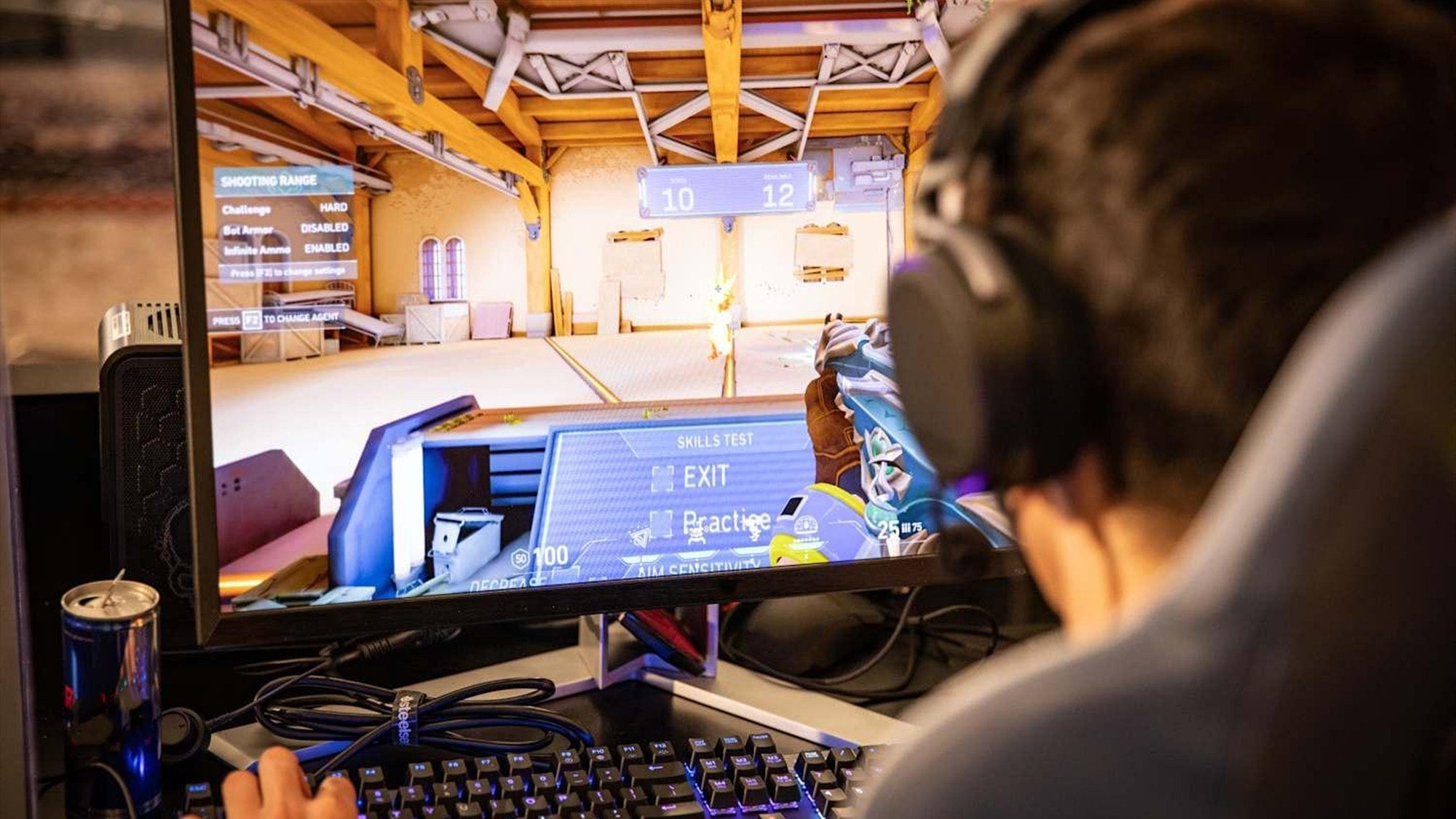
Gaming changes the setup because the mouse is often in motion more often and for longer stretches. You may need extra desk space for faster side-to-side movement, especially if you use lower sensitivity or play games that demand broad aiming motions. That does not change the basic health rule. The wrist still does best when it stays neutral and relaxed, even if the mouse travels farther.
1HP's gaming ergonomics guidance points out that gaming setups often benefit from more open space and a more centered body position. That makes sense because cramped mouse placement can force awkward reach or repeated wrist corrections during long sessions. In other words, proper mouse position for gaming still aims for ergonomic mouse placement: enough room to move without pinning the wrist in a tight corner.
| Factor | Everyday Desk Use | Gaming Use |
|---|---|---|
| Mouse distance | Close to the keyboard, minimal reach | May sit a bit farther for movement room |
| Elbow position | Near the body, relaxed | Slightly wider is common, but avoid shrugging |
| Desk space | Compact and efficient | More open space often helps aiming |
| Movement style | Smaller, efficient motions | Mix of wrist and arm movement |
| Cramped-risk signs | Shoulder reach, bent wrist, hand pressure | Fatigue from repeated flicks, forearm tension, awkward angle |
If your gaming layout feels cramped, the fix is usually not to force more wrist motion. It is often better to make a little more room, center your body more comfortably, and keep the mouse within a range that does not make you reach. For readers who also care about keyboard layout, keyboard and mouse coordination can influence how much space the mouse actually gets.
The main difference is that gaming may ask for more lateral travel, but it should not ask for more strain. If the setup works for five minutes and then starts feeling tight, the issue is probably not just the game. It is likely the amount of reach, the amount of desk space, or the way the chair and mouse line up.
Common Mistakes and Warning Signs
The most common mistake is placing the mouse too far from the body. That usually leads to reaching, shoulder tension, and a wrist that bends outward just to stay on the mouse. Another common problem is letting the desk edge press into the hand or wrist, which can make movement feel restricted and uncomfortable.
Other mistakes to watch for include:
- Keeping the mouse off to one side while the keyboard stays centered.
- Using a desk height that raises the shoulders.
- Gripping the mouse too tightly during routine work or play.
- Resting too much weight on the wrist instead of sharing load through the forearm.
- Ignoring early soreness because it seems minor at first.
These are not diagnoses, but they are useful warning signs. If you notice tingling, numbness, burning, or pain that keeps showing up during or after use, treat the setup as one possible factor, not the only explanation. PubMed research on ergonomic mouse changes is a good reminder that changing posture can alter wrist position without necessarily solving a deeper issue on its own.
If the discomfort is persistent, worsening, unusual, or radiates beyond the wrist, stop trying to "fix" it with more desk tweaks alone and get medical guidance. That boundary matters. Ergonomics can reduce strain, but it should not be used to self-diagnose or delay care when symptoms are not behaving like ordinary setup fatigue.

Quick Desk Check for Better Mouse Placement
Use this quick check whenever your wrist feels off or your setup changes:
- Sit back in the chair and let your shoulders settle.
- Put the keyboard where your hands can reach it without leaning forward.
- Place the mouse directly beside the keyboard, not far ahead or off to the side.
- Rest your forearm lightly and notice whether the wrist stays straight.
- Move the cursor for a minute and watch for shoulder lift, wrist bend, or hand pressure.
- If anything feels cramped, move the mouse closer before changing anything else.
This kind of self-audit works because it starts with the biggest friction points first: reach, height, and desk space. You do not need a complicated checklist to get useful feedback. A setup that lets you click and drag without bracing or leaning is usually a better fit than one that looks tidy but feels tense.
Final Takeaway
The best mouse position for wrist health is the one that reduces reaching, keeps the wrist neutral, and fits the way you actually work or game. Start with the mouse close to the body, check chair and desk height, and make sure the wrist is not forced into a bend just to click. If discomfort keeps returning, treat that as a signal to reassess the setup and, if needed, get professional help.
FAQs
How Close Should a Mouse Be to Your Body?
It should be close enough that you do not have to reach or shrug your shoulder to use it. The mouse should feel easy to access, not like it is sitting off to the side of your workspace.
Can Mouse Position Alone Cause Wrist Pain?
It can contribute, but it is usually not the only factor. Desk height, chair height, session length, and how tightly you grip the mouse can all affect comfort too.
Should My Wrist Rest on the Desk While Using a Mouse?
Light contact may be fine for some people, but avoid pressing the heel of the hand into a hard edge. The goal is relaxed support, not a hard pressure point.
What Is the Best Mouse Position for Gaming Sessions?
Gaming often needs a little more movement room, but the wrist should still stay as neutral as possible. The key is enough space to aim without cramping the hand or shoulder.
How Do I Know If My Setup Is Too Cramped?
If you notice shoulder lift, outward wrist bend, desk-edge pressure, or fatigue that shows up quickly, the mouse is probably too far away or the desk space is too tight.
When Should I Stop Adjusting and Get Help?
If symptoms are persistent, worsening, unusual, numb, or radiate beyond the wrist, stop treating the issue like a simple setup problem and get medical guidance.
Sources
- Office ergonomics: Your how-to guide - Mayo Clinic
- Tips for Using a Computer Mouse - University of Pittsburgh Safety
- A vertical mouse and ergonomic mouse pads alter wrist position but do not reduce carpal tunnel pressure - PubMed
- Vertical Mouse for Wrist Pain: Your Expert Guide - 1HP
- Gamer Wrist Health | Prevent Injury & Boost Performance - Eureka Ergonomic
- How to Stop Your Mouse From Hurting Your Wrist
- The key to gaming operation: Learning to use the keyboard and mouse together skillfully