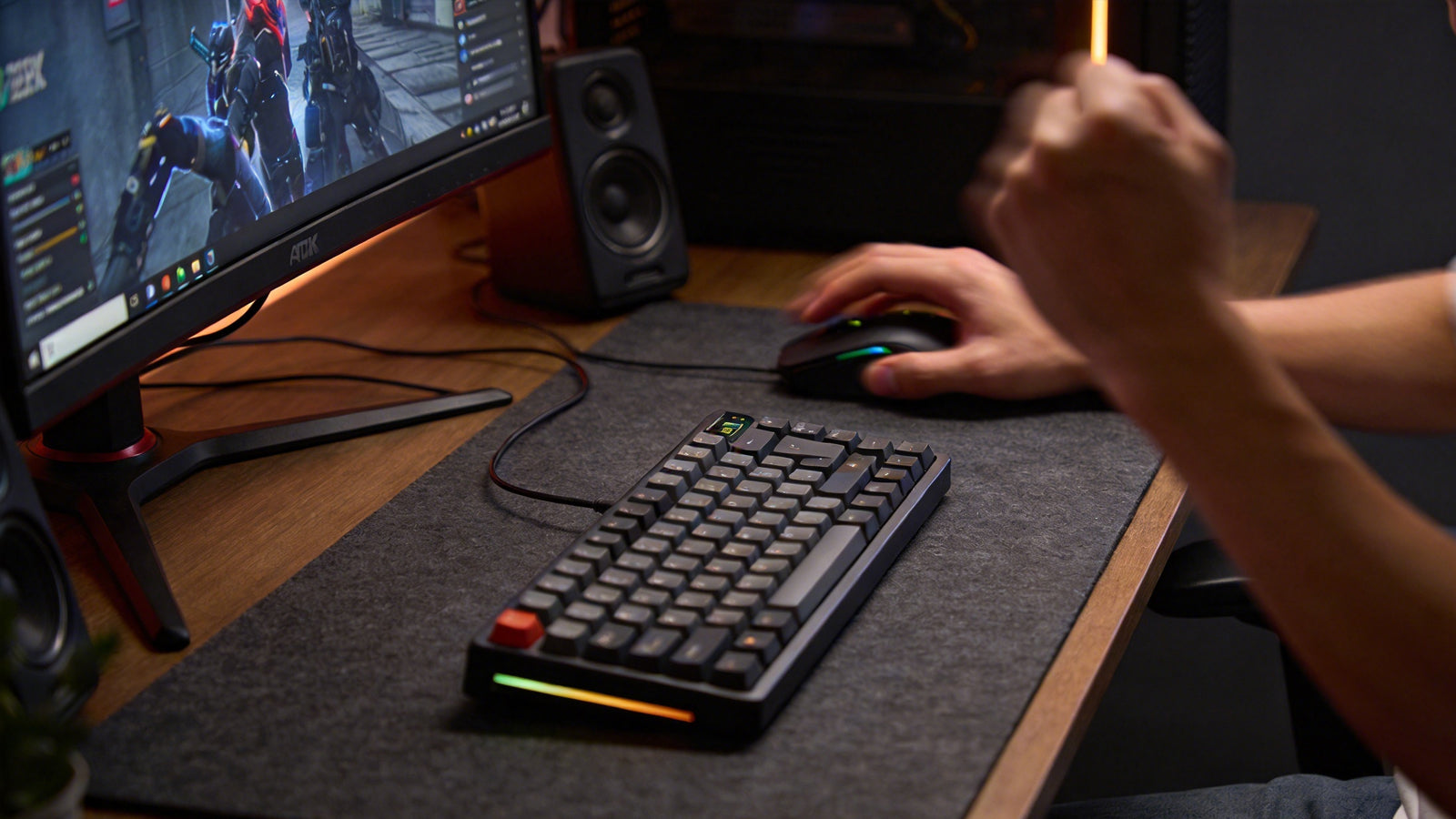




Improper cleaning methods can permanently damage the PCB and hot-swap sockets inside a mechanical keyboard. While hot-swappable boards offer incredible customization, their exposed internal components require careful handling.
This guide covers everything from basic surface cleaning to advanced spill recovery, ensuring your hardware remains in peak condition.
Key Takeaways for Safe Maintenance:
- Power off first: Always disconnect all power sources before cleaning to prevent short circuits.
- Use the right liquids: Stick to 90%+ isopropyl alcohol; never use water-based cleaners on the PCB.
- Be gentle with sockets: Never force switches into hot-swap sockets to avoid ripping the socket off the board.
- Dry completely: Ensure all components are 100% dry before reassembly.
Gather the Right Tools Before You Start
Proper keyboard maintenance requires the correct equipment. Using household cleaning supplies like paper towels or harsh chemical sprays will damage the plastic housing and the internal electronics. Assemble these specific tools on a clean, well-lit desk:
| Cleaning Tool | Primary Purpose | Why It’s Safe |
| Wire Keycap Puller | Removing keycaps | Does not scratch the plastic sides of keycaps. |
| Metal Switch Puller | Extracting mechanical switches | Safely grips the housing without crushing the stem. |
| Isopropyl Alcohol (90%+) | Dissolving grime and spills | Evaporates instantly; leaves no conductive residue. |
| Compressed Air | Blowing out dust and hair | Clears debris without generating static electricity. |
| Anti-Static Brush | Sweeping the switch plate | Prevents static discharge from frying the PCB. |
Prepare the Keyboard for Safe Cleaning
Safety is the absolute priority when exposing a PCB. Never attempt to clean or modify electronic hardware while it receives active power.
Disconnecting the Power Source
If you use a wired device, unplug the USB cable entirely from both the computer and the keyboard. If you use a wireless hot-swappable keyboard, turn the physical power switch on the back or side of the case to the “off” position. If the model uses removable AA or AAA batteries, take them out completely.
Warning: Cleaning a mechanical keyboard while it is connected to power can short the PCB and permanently damage sensitive electronic components. Even microscopic amounts of moisture can create electrical conductivity across exposed circuits.
Taking a Reference Photo
Before removing any components, take a clear, top-down photograph of the entire layout using your smartphone. This simple step saves you from guessing where specific keys (especially non-standard function keys or different-sized shift keys) belong during reassembly.

Remove the Keycaps Safely
Keycaps collect the majority of finger oils, sweat, and environmental dust. Removing them is the first step in deep cleaning the surface of the plate.
Using the Wire Puller Correctly
Slide the wire loops of your keycap puller straight down over a keycap, ensuring the wires catch under the opposite corners of the plastic. Pull straight upward with a gentle, firm, wiggling motion. Never pull at a sharp angle, as this can snap the plastic stem of the mechanical switch underneath.
Washing the Keycaps
Place all the removed keycaps into a large bowl filled with warm water (around 35-40°C / 95-104°F—avoid hot water to prevent warping) and a few drops of mild dish soap. Let them soak for 30 minutes to break down accumulated finger oils. Rinse them thoroughly under cold water and lay them flat on a dry towel. Ensure they are completely, 100% dry before placing them back on the board. Let them soak for 30 minutes to break down accumulated finger oils. Rinse them thoroughly under cold water and lay them flat on a dry towel. Ensure they are completely, 100% dry before placing them back on the board.

Clean the Switch Plate and Chassis
With the keycaps removed, the metal or polycarbonate switch plate is fully exposed.
Removing Loose Debris
Hold the keyboard at a slight angle over a trash can. Use your soft-bristled brush to gently sweep away loose dust and hair. For stubborn debris, use short, controlled bursts from your compressed air can. Always keep the can perfectly upright; tilting it can spray freezing liquid propellant directly onto the PCB, causing condensation.
Spot-Cleaning Sticky Areas
If you notice sticky residue on the plate between the switches, lightly dampen a cotton swab with isopropyl alcohol and carefully rub the area. The alcohol dissolves the sugar quickly and evaporates almost instantly, minimizing any risk of moisture reaching the sensitive electronics below.

How to Safely Remove and Install Hot-Swap Switches
Modern hot-swappable keyboards from brands like Keychron, Akko, MonsGeek, EPOMAKER, and Glorious use specialized Kailh or TTC sockets soldered to the back of the PCB. These are the most fragile components of the entire device.
Removing Switches Without Damage
Place the teeth of your metal switch puller into the small tabs located at the top and bottom (north and south) of the switch housing. Squeeze the puller firmly to depress the locking tabs, then pull straight up. Do not yank or twist.
Pro Tip: Hot-swap sockets are small components soldered directly onto the PCB. Twisting switches or forcing them during removal can rip the socket entirely off the circuit board, permanently disabling that specific key.
Installing Switches Correctly
Absolute precision is required when pushing a new switch into the board. First, check the bottom of the switch to ensure the two small metal copper pins are perfectly straight. If a pin is bent, gently straighten it with tweezers. Line up the pins with the holes in the socket and press straight down until it clicks. Never force a switch if you feel heavy resistance.

Address PCB Spills and Corrosion (Advanced)
If you accidentally spill a large volume of liquid directly into the board, surface cleaning is not enough. You must address the PCB directly to prevent long-term corrosion.
Disassembling the Case
To clean a severe spill, remove all switches and unscrew the top and bottom halves of the keyboard case to expose the bare PCB. Consult your manufacturer’s manual for specific screw locations.
Cleaning the Circuit Board
Visually inspect the PCB for sticky residue or white, crusty corrosion. Dip a soft toothbrush or a foam swab into 90% isopropyl alcohol and gently scrub the affected areas. Do not use water. Allow the bare PCB to air dry for at least 24 hours in a warm, ventilated room before reassembling the case and restoring power.
Quick Summary
To safely maintain a hot-swappable keyboard:
- Disconnect all power before cleaning
- Use 90%+ isopropyl alcohol for PCB-safe cleaning
- Never force switches into hot-swap sockets
- Keep moisture away from exposed electronics
- Ensure all components are fully dry before reassembly
- Handle hot-swap sockets gently to avoid PCB damage
Proper maintenance helps prevent dead keys, corrosion, damaged sockets, and PCB failure.
Keep Your Mechanical Keyboard Reliable
Proper maintenance is essential for preserving the lifespan, performance, and reliability of a hot-swappable mechanical keyboard. By using safe cleaning materials, handling switches carefully, avoiding excessive moisture, and protecting the PCB from physical damage, you can prevent dead keys, socket failures, and corrosion. Regular cleaning ensures stable typing performance and long-term durability for your mechanical keyboard.
Proper maintenance also improves switch longevity, typing consistency, key responsiveness, and long-term keyboard reliability.
Frequently Asked Questions (FAQ)
Troubleshooting Common Issues
Why are some keys not working after swapping switches?
Bent switch pins or damaged hot-swap sockets are the most common causes. Pull the switch out and check if the metal pins are crushed or folded flat.
Why does my hot-swap socket stop working entirely?
Sockets can fail if switches are inserted at an angle or removed with excessive force, which tears the solder pads off the PCB.
Can water permanently damage a mechanical keyboard?
Yes. Water can corrode electrical traces and cause short circuits if the PCB is not fully dried before plugging it back in.
General Maintenance Questions
How often should I perform deep keyboard maintenance?
If you use the board daily, you should remove the keycaps and brush the plate every three to four months. A complete deep clean, including washing the keycaps, is recommended once a year.
Can I use a vacuum cleaner on my keyboard?
It is not recommended. Standard household vacuum cleaners generate massive amounts of static electricity at the nozzle. Discharging static electricity directly into the plastic chassis can fry the internal PCB.
Is it safe to use WD-40 to fix sticky mechanical switches?
No. WD-40 is a penetrating oil and solvent that eats through the specific plastics used in mechanical switches and damages the conductive metal leaves inside. If a switch is malfunctioning, simply replace it.
Can I lubricate switches while they are still plugged into the board?
No. Spraying or injecting liquid lubricant directly into an installed switch will cause the oil to leak straight down into the hot-swap socket and onto the PCB, blocking the electrical connection.