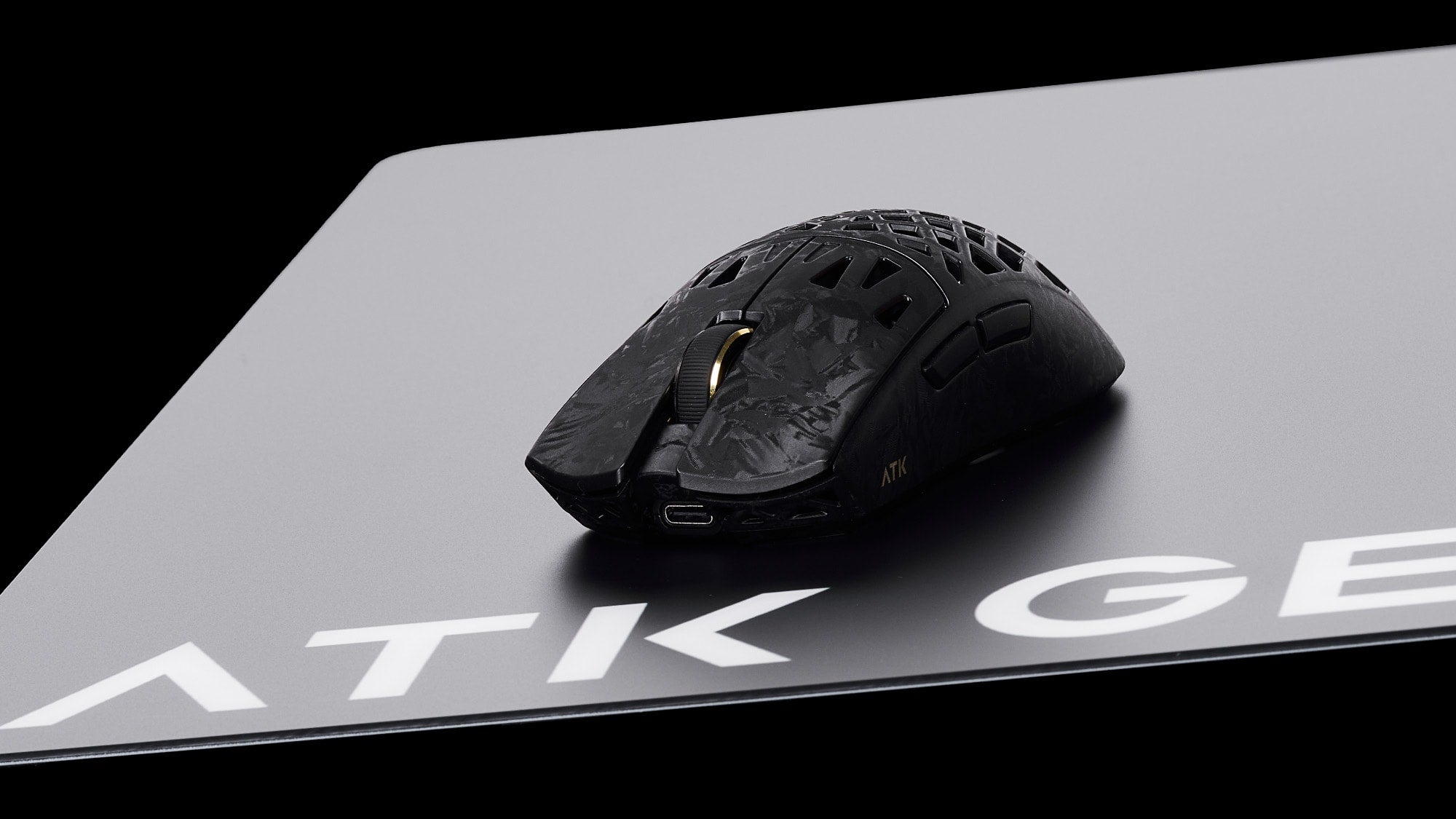



ATK GEARMouse shape hand fatigue is real for many people, but the shape is only one part of the comfort picture. A mouse can feel better or worse by changing hand posture, finger reach, and how much grip force you need, yet hand size, grip style, sensitivity, and desk setup still matter just as much in many setups.
Does Mouse Shape Affect Comfort?
Yes, mouse shape can affect comfort, especially during long sessions. Official workplace guidance says to choose a mouse that supports the natural curve of the hand and allows a relaxed grip, because that can reduce muscle tension and make the mouse easier to use over time. The CCOHS mouse selection guidance supports that basic idea.
What that means in practice is simple: if the shell forces you to pinch, hover, or reach farther than feels natural, the shape is probably working against you. If the mouse lets your hand rest more easily, it may reduce fatigue even if the difference feels subtle at first.
That said, mouse shape hand fatigue is not a one-factor problem. The same mouse can feel fine for short browsing but tiring after hours of clicking, dragging, or gaming. Shape can help, but it does not override a poor setup or a mismatch between the mouse and the user.

What Mouse Shape Changes in Your Grip
The most useful way to think about does mouse shape affect comfort is to break shape into a few practical parts.
Sculpting and curve. A more sculpted mouse gives the hand a clearer resting shape. Research in the NIH-hosted ergonomic mouse study describes how specialized shapes can reduce forearm pronation and improve palm support. In plain language, that means the mouse can steer the hand toward a less twisted, more supported position.
Height and width. Taller or wider shapes change how much of the hand rests on the mouse. A mouse that is too small can make the hand feel cramped, while one that is too bulky can make the fingers spread or hover more than they should. The right feel depends on whether you want more palm contact or more freedom to move.
Side contours. Thumb grooves and curved side walls can reduce the need to squeeze the mouse tightly. That can feel reassuring during long sessions, but aggressive contours can also feel awkward if they do not match your hand shape.
Button slope and reach. The angle of the main buttons changes how far the index and middle fingers need to extend for repeated clicks. A gentler reach can feel easier over time, while a steeper or longer reach can make the hand work harder.
A CDC-archived comparison of flat, angled, and vertical computer mice found that different profiles do not feel the same in use and can differ in perceived fatigue and user preference. The CDC Stacks comparison is a useful reference for that broader point.

How Hand Size and Grip Style Change Comfort
Hand size and grip style change the comfort equation quickly. A mouse that feels supportive in one grip can feel awkward in another, even if the shell looks ergonomic from the outside. The key is to judge fit by contact, reach, and tension, not by appearance alone.
| Comfort factor | What to notice | Shape traits that may feel better | Common comfort trade-off |
|---|---|---|---|
| Hand size | Does the mouse fill your hand without forcing a stretch or pinch? | A size that matches the length and width of your hand | Too small can feel cramped, too large can feel clumsy |
| Palm grip | Does most of your hand rest on the mouse? | More palm contact, taller support, fuller curves | Can feel secure, but may feel bulky if the shell is too large |
| Claw grip | Do your fingers arch while the palm stays partly lifted? | Moderate height, supportive sides, shorter reach | Can feel precise, but too much bulk may increase tension |
| Fingertip grip | Do you control the mouse mostly with fingers and little palm contact? | Lower profile, lighter support, easy button reach | Can feel nimble, but a shape that is too flat may encourage pinching |
| Long-session use | Does comfort fade after an hour or more? | A shape that stays relaxed under repeated use | First-impression comfort can be misleading if the mouse feels worse later |
The ASHT ergonomics guidance notes that a poor match between mouse size and hand dimensions can increase muscle tension and wrist motion strain. That does not mean one grip style is always better. It means the best mouse shape is the one that lets your grip stay relaxed instead of forced.
For mouse shape hand fatigue, the practical test is whether the mouse makes you squeeze less, reach less, and settle into a more neutral hold. If a mouse only feels good when you tighten your grip, it is probably not the right fit.
When Shape Helps and When It Does Not
Shape helps most when the main problem is a poor match between the mouse and the hand. It helps less when the real issue is setup or habit. OSHA's workstation guidance says to keep the mouse close to the keyboard and maintain a straight, neutral wrist position during use.
That matters because a good mouse can still feel tiring if:
- your mouse sits too far away, so your shoulder and forearm have to reach;
- your wrist bends outward or upward for long periods;
- you grip too hard when the mouse is already the right size;
- your desk height pushes you into a tense arm or shoulder position;
- you rarely pause during long work or gaming sessions.
This is the main boundary for mouse shape hand fatigue: if discomfort changes a lot when you move the mouse closer, straighten your wrist, or adjust your chair and desk, shape is probably not the only issue. In that case, a new mouse may help, but it is not the first fix to chase.
How to Choose a Mouse Shape
Use a fit-first process instead of guessing from photos or marketing language.
- Start with your hand size and grip style. Notice whether you use more palm contact, a claw grip, or fingertip control. That tells you what kind of support you actually need.
- Reject shapes that force obvious tension. If the mouse makes you pinch, stretch, or hover your hand in an awkward way, cross it off early.
- Check posture in the same setup. Test the mouse with the same desk, chair, and screen position so you are judging shape rather than changing three variables at once.
- Look for relaxed reach. Your fingers should land on the buttons without extra extension, and your wrist should feel neutral rather than bent.
- Try it in real use. Short browsing can hide problems. Use the mouse through a normal work block or game session and see whether comfort holds.
- Use dimensions as a screen, not a verdict. Size, height, and side shape can rule options in or out, but the real question is whether the mouse lets you stay relaxed.
If you are still deciding between broader mouse categories, a separate ergonomic mouse shape guide can help frame the choice without turning it into a brand-only decision.
The safest answer to does mouse shape affect comfort is yes, but only when the shape matches the hand and does not fight the rest of the setup. If a mouse looks ergonomic but still makes you tense up, keep looking.

Comfort Checks Before You Commit
Before you decide a mouse shape is right, check it in real use, not just in your hand for a few seconds. Your shoulders should stay relaxed, your grip should stay loose, your fingers should reach the buttons naturally, and clicking should not feel like work. If the mouse feels fine only when you change posture to compensate, that is a warning sign. Persistent pain or numbness is not a simple shape-selection problem, so it is better to pause and address the setup or get professional guidance.
FAQs
How Do I Know If My Mouse Shape Is Causing Fatigue?
Look for fatigue patterns that show up mainly during mouse use, not just at random. Common signs include cramped fingers, a pinching grip, awkward wrist angle, or a feeling that you must hold the mouse tighter than you want to. If the discomfort improves when you change desk setup, the mouse may not be the main cause.
What Mouse Shape Works Best for Large Hands?
Large hands often need more palm contact and more length, but there is no universal best shape. A mouse that is too short can force the fingers to curl too tightly, while one that is too tall or wide can feel bulky. Grip style still matters, so palm, claw, and fingertip users may prefer different profiles.
Can a Smaller Mouse Reduce Hand Strain?
Sometimes, but only for the right grip and hand size. A smaller mouse can shorten reach for fingertip users, yet it may also increase pinching or instability for palm-grip users. Smaller is not automatically better. The real test is whether the mouse lets you stay relaxed through a long session.
Why Does My Mouse Feel Fine at First but Worse Later?
That usually means first-impression comfort is hiding a longer-session problem. Grip force, repetition, and posture drift can build over time even when the mouse feels fine for a few minutes. If the discomfort grows with session length, focus on real-use testing instead of judging by the first pickup.
Can Mouse Shape Fix Wrist Pain by Itself?
Not usually. Shape can improve comfort, but wrist pain can also come from desk height, wrist angle, mouse placement, or how long you stay in one position. If pain keeps coming back or gets worse, treat the mouse as only one part of the problem and get qualified help if needed.